
Overview
Thanks for requesting a demo of AI Search Summaries for WordPress! To build a demo using your own content, we need a copy of your site’s written content — the text of your posts and pages. This guide walks you through exporting that content from WordPress and sending it to us.
It takes about five minutes and does not require any technical skill beyond logging in to your WordPress dashboard.
What We Need — and What to Leave Out
We only need your written content: the text of your blog posts and site pages. Please do not include images, videos, PDFs, or other media files.
Leave media and attachments out of your export. They are not used to build the demo, and including them only makes the file larger and slower to upload. The steps below show you exactly how to exclude them.
Step 1: Export Your Content from WordPress
WordPress has a built-in export tool that packages your content into a single file. If your site has both blog posts and standalone pages, you will use it twice — once for each — so nothing important gets left out.
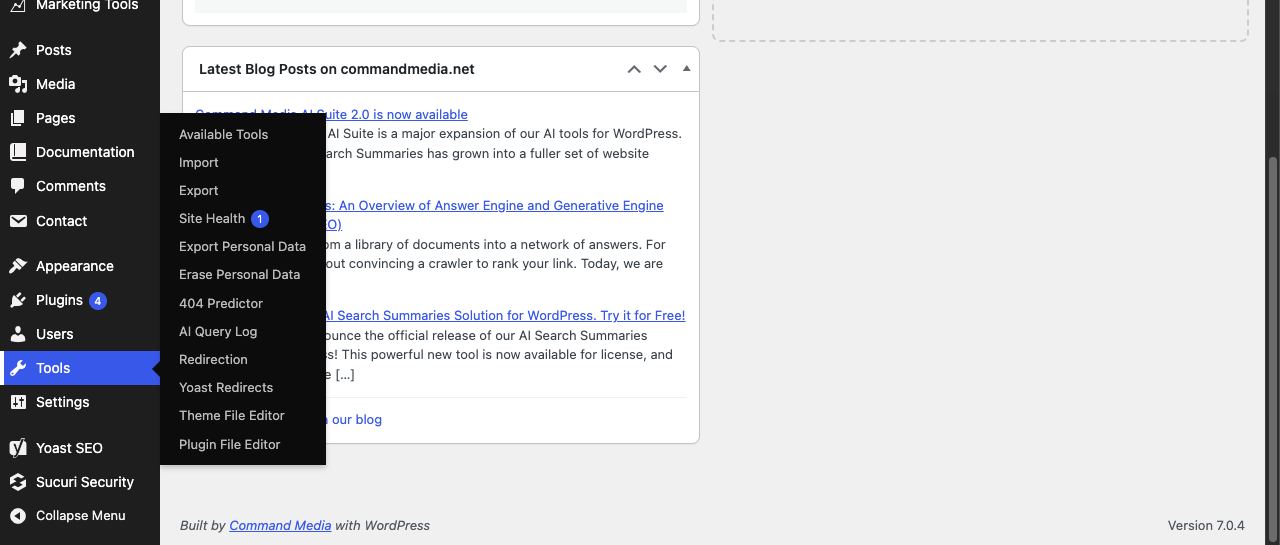
Open Tools → Export
Log in to your WordPress dashboard. In the left-hand menu, hover over Tools, then click Export.
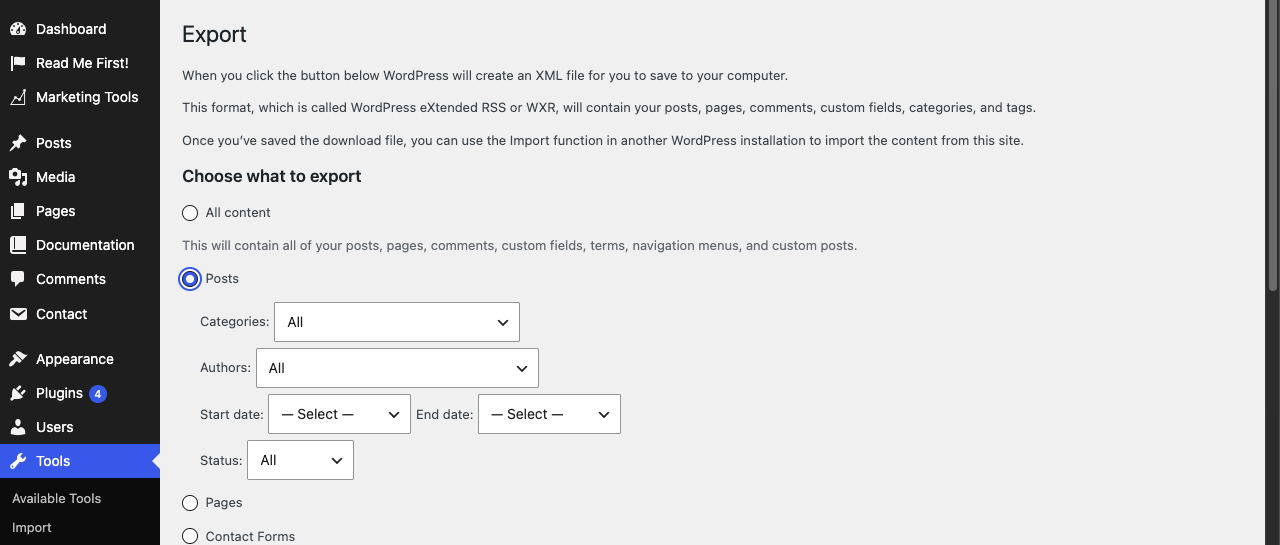
Choose what to export
On the Export screen, under Choose what to export, select Posts first. Leave the category, author, date and status filters set to All — you want everything.
Click Download Export File. Your browser will save an .xml file — this is the file you’ll share with us in Step 2.
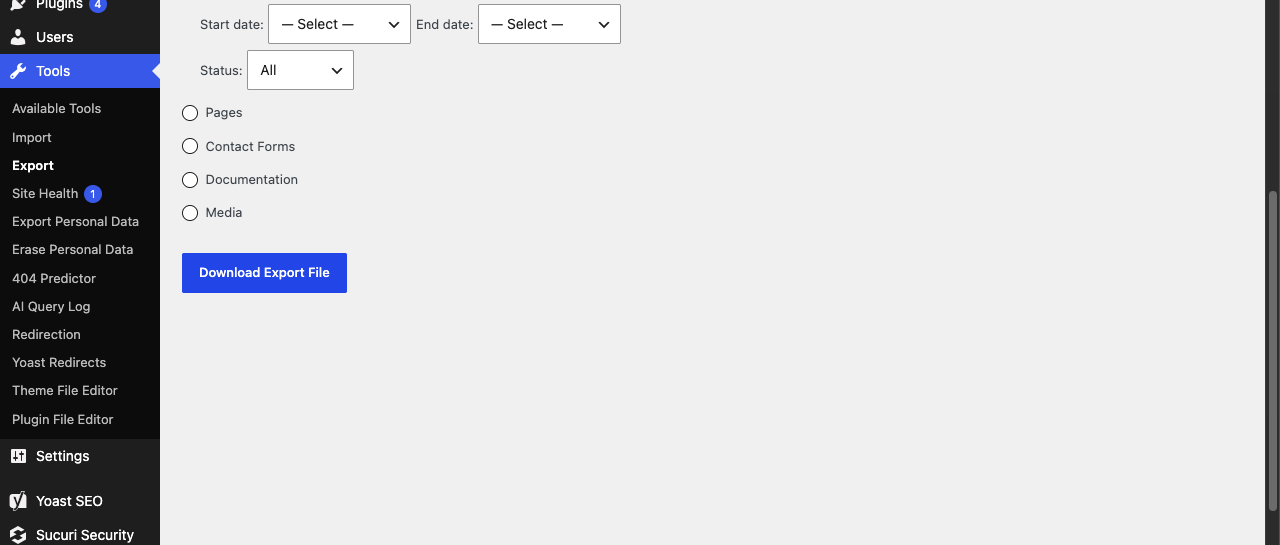
If your site also has written content on standalone pages (an About page, Services pages, and so on), repeat these steps once more: return to Tools → Export, select Pages instead of Posts this time, and click Download Export File again. You should end up with one or two .xml files in total.
Step 2: Upload the File Somewhere We Can Access
Next, upload the .xml file (or files) you downloaded to a shared Dropbox or Google Drive folder, and generate a link that anyone with the link can open.
Using Dropbox
- Upload the .xml file to Dropbox, either by dragging it into a folder at dropbox.com, or into your Dropbox folder on your computer.
- Right-click the file and choose Share.
- Make sure the link is set so anyone with it can view the file, then click Copy link.
Using Google Drive
- Upload the .xml file at drive.google.com, either by dragging it in or using New → File upload.
- Right-click the file and choose Share.
- Under General access, change the setting to Anyone with the link, then click Copy link.
Either service works fine — use whichever you already have. A single shared folder works too if you’d rather upload both files together.
Step 3: Send Us the Link
Reply to the email from your Command Media contact with the share link (or links, if you exported Posts and Pages separately). That’s it — we’ll take it from there.
What Happens Next
We’ll use your content to build a working AI Search demo on your own material, so you can see how it performs on real questions your visitors might ask. We’ll follow up once it’s ready.
Troubleshooting
| Symptom | What to do |
|---|---|
| I don’t see a Tools menu | You may not have Administrator access on this WordPress site. Ask whoever manages the site to either run these steps or grant you Administrator access. |
| The Download Export File button doesn’t do anything | Some browsers block automatic downloads. Check your browser’s download prompt or settings, and allow the download from your site’s address. |
| My file is much larger than expected | This usually means All content or Media was selected instead of Posts or Pages. Go back to Tools → Export and export again, selecting Posts or Pages specifically. |